> ## Documentation Index
> Fetch the complete documentation index at: https://docs.paysight.io/llms.txt
> Use this file to discover all available pages before exploring further.
# Retry Strategies
> Understand how to design, implement, and manage sophisticated retry strategies for failed Merchant Initiated Transactions (MITs) to enhance payment recovery rates.
Retry strategies provide a robust and configurable framework for automating responses to failed Merchant Initiated Transactions (MITs). Each strategy comprises a sequence of customizable steps, allowing for nuanced control over retry conditions (such as decline types), pricing adjustments, and precise timing for subsequent attempts.
```mermaid theme={null}
flowchart LR
A[Create retry strategy] --> B[Define Steps] --> C{Apply strategy to subscription under}
C --> D[Insufficient Funds Strategy]
C --> E[Issuer Declines Strategy]
subgraph B[Define Steps]
B1[Retry 1] --> B2[Retry 2] --> B3[Retry 3]
end
```
## Overview
A retry strategy is a set of sequential steps that determine:
* How many times to retry a failed transaction
* What price to use for the retry attempt
* Use preferred days for retry attempts
* Custom selection logic for optimal retry success
Retry strategies are essential for maximizing transaction success rates while maintaining control over retry timing and pricing.
## Strategy Step Configuration Options
Each retry step includes several key options:
Configure whether to use the original transaction price or a custom amount for the retry attempt.
Define minimum delay periods (e.g., in hours or days) between retry attempts. A setting of zero implies no delay.
Choose to use preferred billing days for retry attempts.
Apply custom MID selection logic for the retry attempt.
## Creating a Strategy
Navigate to [Retry Strategies](https://app.paysight.io/management/retrystrategies) in the main navigation menu within the platform.
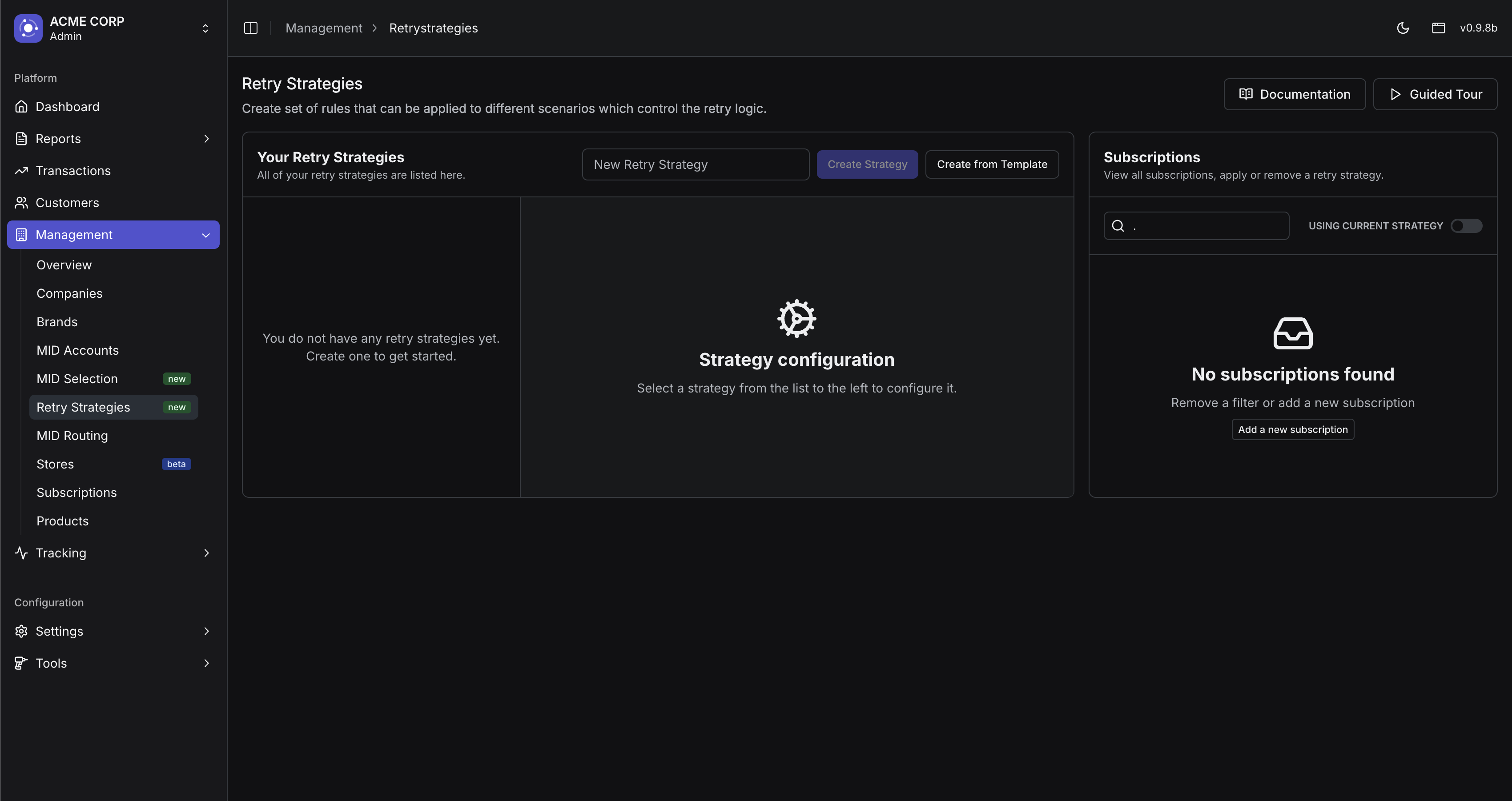 You have two options for creating a strategy:
1. Create an empty strategy by entering a name and clicking "Create Strategy"
2. Use a template by clicking "Create from Template"
You have two options for creating a strategy:
1. Create an empty strategy by entering a name and clicking "Create Strategy"
2. Use a template by clicking "Create from Template"
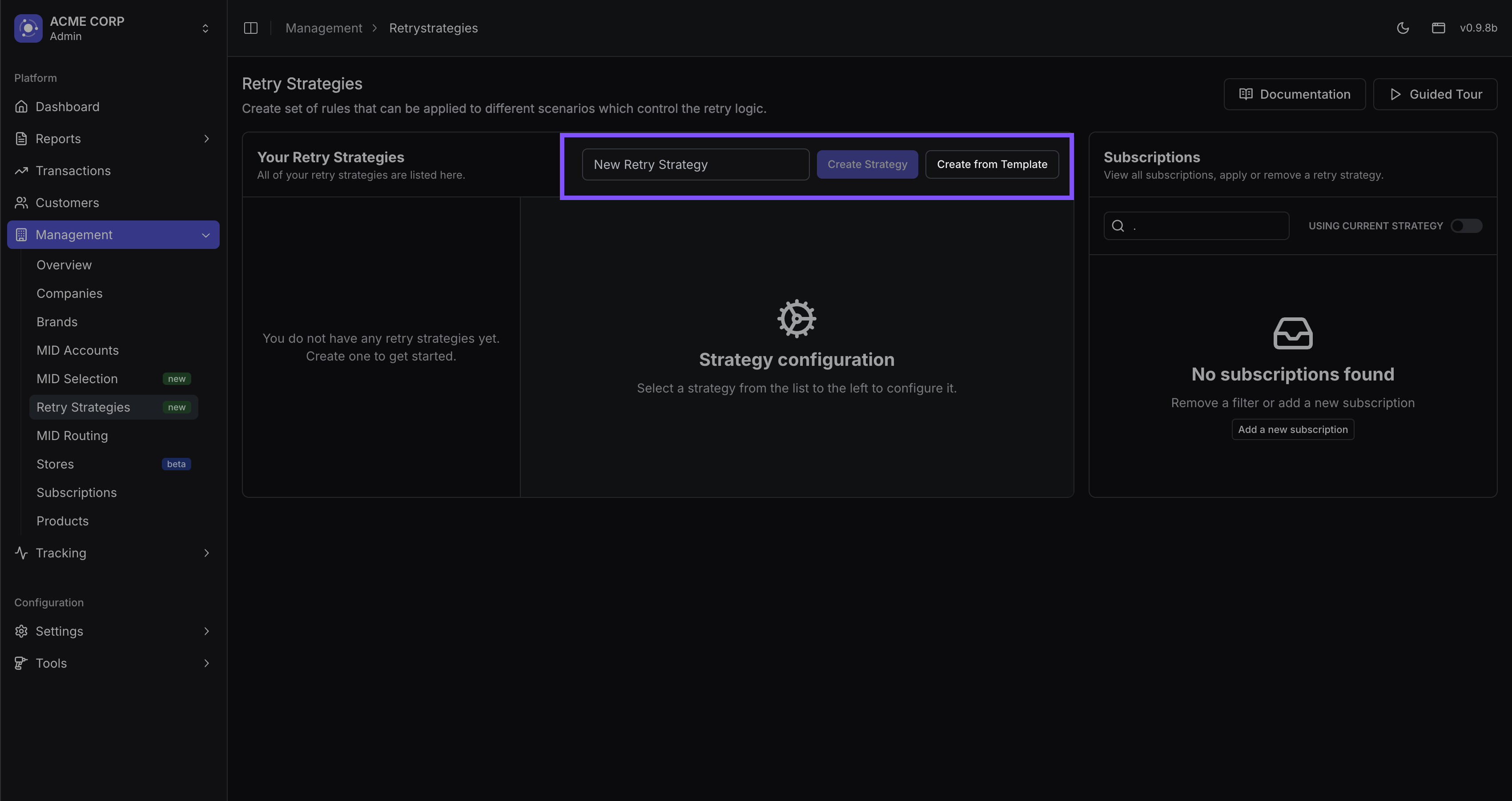 There are a number of options that you can configure on a step:
Retry number is the sequential order of the retry attempt.
You can re-order the steps by dragging the steps around.
This switch determines if the original transaction price is used for the retry. Disabling 'Original Price' reveals a `Price` input field, allowing specification of a custom amount for the retry.
Extend to preferred days will extend the retry attempt to the preferred days of the week if turned on.
Preferred days are internally set by the platform and cannot be changed at this time.
Price is the amount that will be used for the retry attempt.
If the original price is turned off, this field will be required.
The price must be greater than 0.
This dropdown allows selection of a specific Merchant ID (MID) routing logic for the retry attempt. The default, `None`, means the system uses your standard MID routing configuration for the applicable scenario (e.g., Issuer Declines).
The available options are:
* `Default (None)`
* `Sale Shield`: Routes the retry attempt through a Sale Shield-designated MID. This requires an active Sale Shield integration on your account and is designed to optimize approval for specific transaction types.
There are a number of options that you can configure on a step:
Retry number is the sequential order of the retry attempt.
You can re-order the steps by dragging the steps around.
This switch determines if the original transaction price is used for the retry. Disabling 'Original Price' reveals a `Price` input field, allowing specification of a custom amount for the retry.
Extend to preferred days will extend the retry attempt to the preferred days of the week if turned on.
Preferred days are internally set by the platform and cannot be changed at this time.
Price is the amount that will be used for the retry attempt.
If the original price is turned off, this field will be required.
The price must be greater than 0.
This dropdown allows selection of a specific Merchant ID (MID) routing logic for the retry attempt. The default, `None`, means the system uses your standard MID routing configuration for the applicable scenario (e.g., Issuer Declines).
The available options are:
* `Default (None)`
* `Sale Shield`: Routes the retry attempt through a Sale Shield-designated MID. This requires an active Sale Shield integration on your account and is designed to optimize approval for specific transaction types.
 Once you have configured the steps, you can add more steps by clicking the `Add Retry Step` button.
When you are happy with your steps, you can click the `Save` button to save your strategy.
Once a strategy is configured, it must be applied to subscriptions to take effect. This is typically managed on a per-subscription basis, allowing strategies to be tailored to specific decline scenarios.
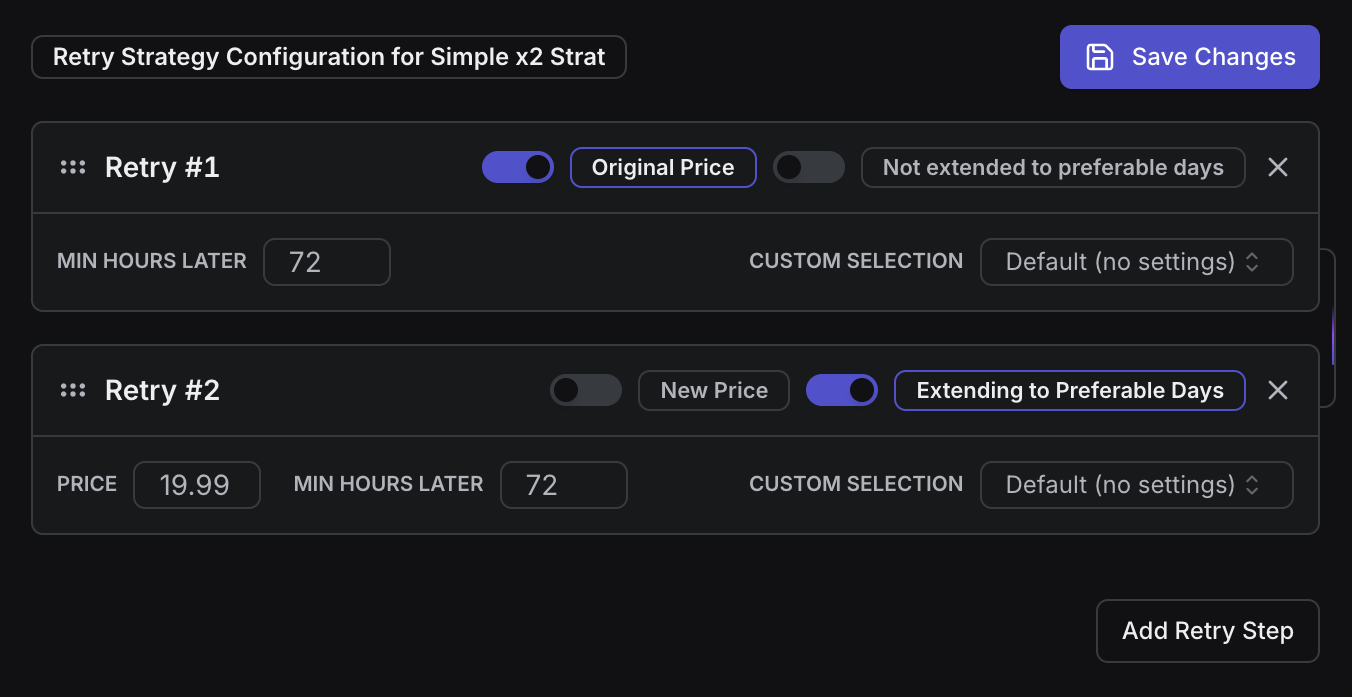
To apply a strategy, first locate and select the relevant subscription. You can do this by searching by name or ID in the Subscriptions section or by navigating directly to [Subscriptions](https://app.paysight.io/management/subscriptions) via the main navigation menu within the platform.
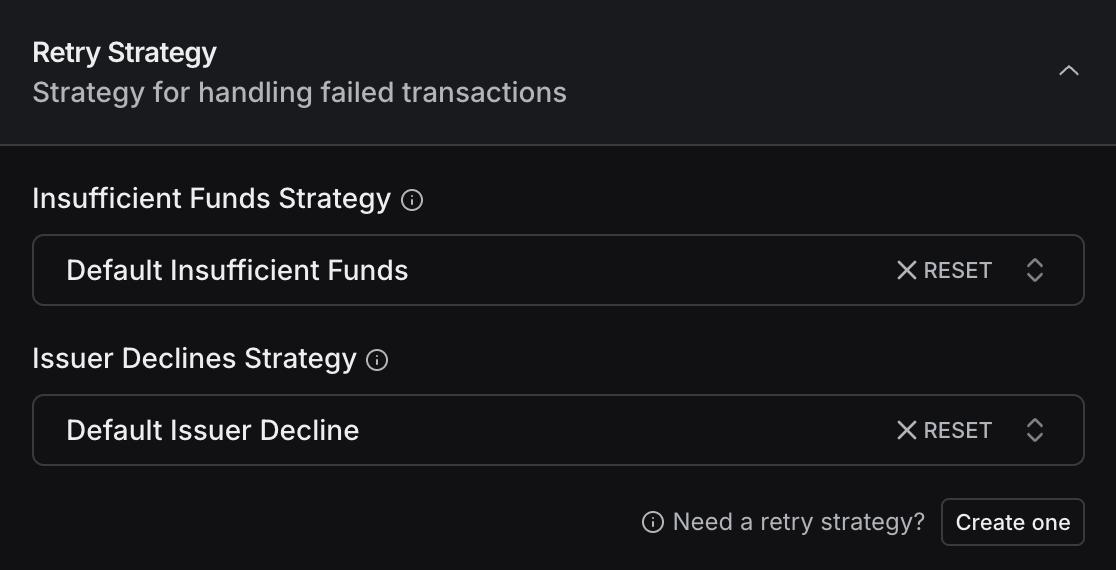
Once you have selected and opened a subscription in a sidepanel, navigate to the `Retry Strategy` section.
Once you have configured the steps, you can add more steps by clicking the `Add Retry Step` button.
When you are happy with your steps, you can click the `Save` button to save your strategy.
Once a strategy is configured, it must be applied to subscriptions to take effect. This is typically managed on a per-subscription basis, allowing strategies to be tailored to specific decline scenarios.
To apply a strategy, first locate and select the relevant subscription. You can do this by searching by name or ID in the Subscriptions section or by navigating directly to [Subscriptions](https://app.paysight.io/management/subscriptions) via the main navigation menu within the platform.
Once you have selected and opened a subscription in a sidepanel, navigate to the `Retry Strategy` section.
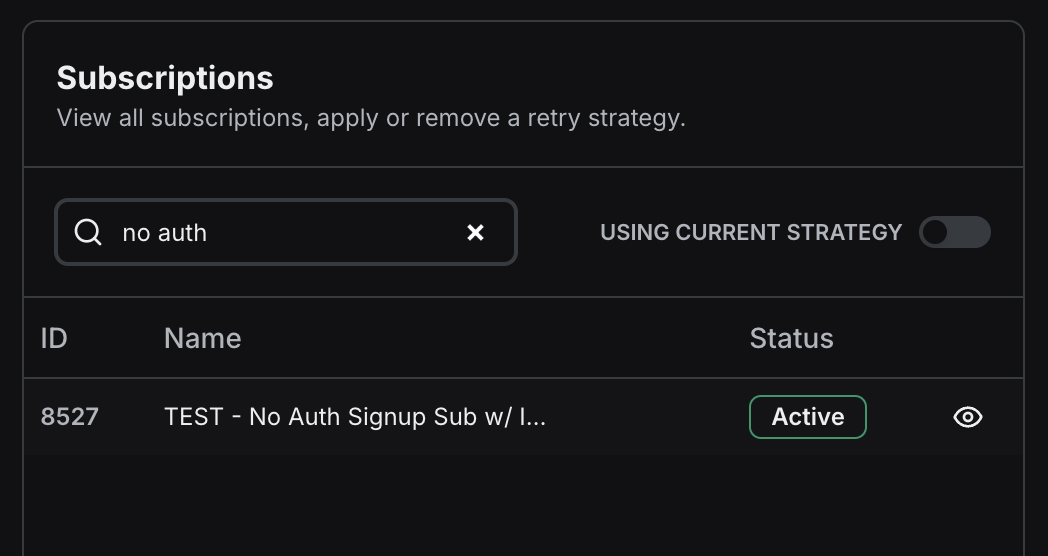 Within this section, you'll select the decline scenario to which the strategy will apply:
* `Insufficient Funds`
* `Issuer Declines`
From the dropdown menu, choose the desired retry strategy. You can also search for the strategy by its name if you have many configured.
Once the strategy is selected for the scenario, click `Update Subscription` to save these changes and activate the strategy for that subscription.
Within this section, you'll select the decline scenario to which the strategy will apply:
* `Insufficient Funds`
* `Issuer Declines`
From the dropdown menu, choose the desired retry strategy. You can also search for the strategy by its name if you have many configured.
Once the strategy is selected for the scenario, click `Update Subscription` to save these changes and activate the strategy for that subscription.
 Changes to retry strategies affect all linked subscriptions. Review carefully before applying.
## Guided Tour
The platform includes an interactive guided tour to help you create your first retry strategy:
Click the "Guided Tour" button in the Retry Strategies dashboard.
Follow the prompts to create your first strategy. The tour will wait until you complete each step before proceeding.
Learn about each configuration option:
* Step numbering
* Price settings
* Timing configuration
* Selection logic
Complete the tour by learning how to:
* View subscriptions
* Filter and search
* Apply strategies to subscriptions
## Best Practices
* **Start Simple:** Begin with straightforward strategies and incrementally add complexity. This helps in understanding their impact before introducing more intricate rules.
* **Pilot Testing:** Always test new or modified strategies on a small, representative subset of subscriptions to mitigate potential risks and validate effectiveness before a full rollout.
* **Maintain Documentation:** Thoroughly document the logic and rationale behind each strategy for clarity, team alignment, and easier future maintenance or adjustments.
* **Incremental Delays:** Implement incremental delays between retry attempts. This can prevent overwhelming payment gateways or cardholder accounts and allows time for transient issues (e.g., insufficient funds) to be resolved.
* **Timezone Awareness:** When configuring retry timing, consider the cardholder's timezone to ensure retries occur at optimal and appropriate times, potentially increasing success rates.
* **Price Point Variation:** Experiment with slightly different price points for retries, especially for certain decline reasons. Some declines might be linked to transaction amount thresholds, and a minor adjustment could lead to approval.
* **Continuous Monitoring:** Regularly review the performance of your retry strategies using available analytics. This helps in identifying trends, measuring effectiveness, and spotting areas for optimization.
* **Granular Analysis:** Track success rates for individual steps and configurations within your strategies. This detailed insight helps understand which approaches are most effective for different decline reasons or customer segments.
* **Data-Driven Adjustments:** Use performance data to make informed adjustments to your strategies. This iterative process is key to continuously improving payment recovery rates and adapting to evolving payment landscapes.
Changes to retry strategies affect all linked subscriptions. Review carefully before applying.
## Guided Tour
The platform includes an interactive guided tour to help you create your first retry strategy:
Click the "Guided Tour" button in the Retry Strategies dashboard.
Follow the prompts to create your first strategy. The tour will wait until you complete each step before proceeding.
Learn about each configuration option:
* Step numbering
* Price settings
* Timing configuration
* Selection logic
Complete the tour by learning how to:
* View subscriptions
* Filter and search
* Apply strategies to subscriptions
## Best Practices
* **Start Simple:** Begin with straightforward strategies and incrementally add complexity. This helps in understanding their impact before introducing more intricate rules.
* **Pilot Testing:** Always test new or modified strategies on a small, representative subset of subscriptions to mitigate potential risks and validate effectiveness before a full rollout.
* **Maintain Documentation:** Thoroughly document the logic and rationale behind each strategy for clarity, team alignment, and easier future maintenance or adjustments.
* **Incremental Delays:** Implement incremental delays between retry attempts. This can prevent overwhelming payment gateways or cardholder accounts and allows time for transient issues (e.g., insufficient funds) to be resolved.
* **Timezone Awareness:** When configuring retry timing, consider the cardholder's timezone to ensure retries occur at optimal and appropriate times, potentially increasing success rates.
* **Price Point Variation:** Experiment with slightly different price points for retries, especially for certain decline reasons. Some declines might be linked to transaction amount thresholds, and a minor adjustment could lead to approval.
* **Continuous Monitoring:** Regularly review the performance of your retry strategies using available analytics. This helps in identifying trends, measuring effectiveness, and spotting areas for optimization.
* **Granular Analysis:** Track success rates for individual steps and configurations within your strategies. This detailed insight helps understand which approaches are most effective for different decline reasons or customer segments.
* **Data-Driven Adjustments:** Use performance data to make informed adjustments to your strategies. This iterative process is key to continuously improving payment recovery rates and adapting to evolving payment landscapes.