
Please also consult the API Reference for detailed information on the Card Submission API.
Prerequisites
Before starting the integration, ensure you have:Paysight Account
Active merchant account with Paysight
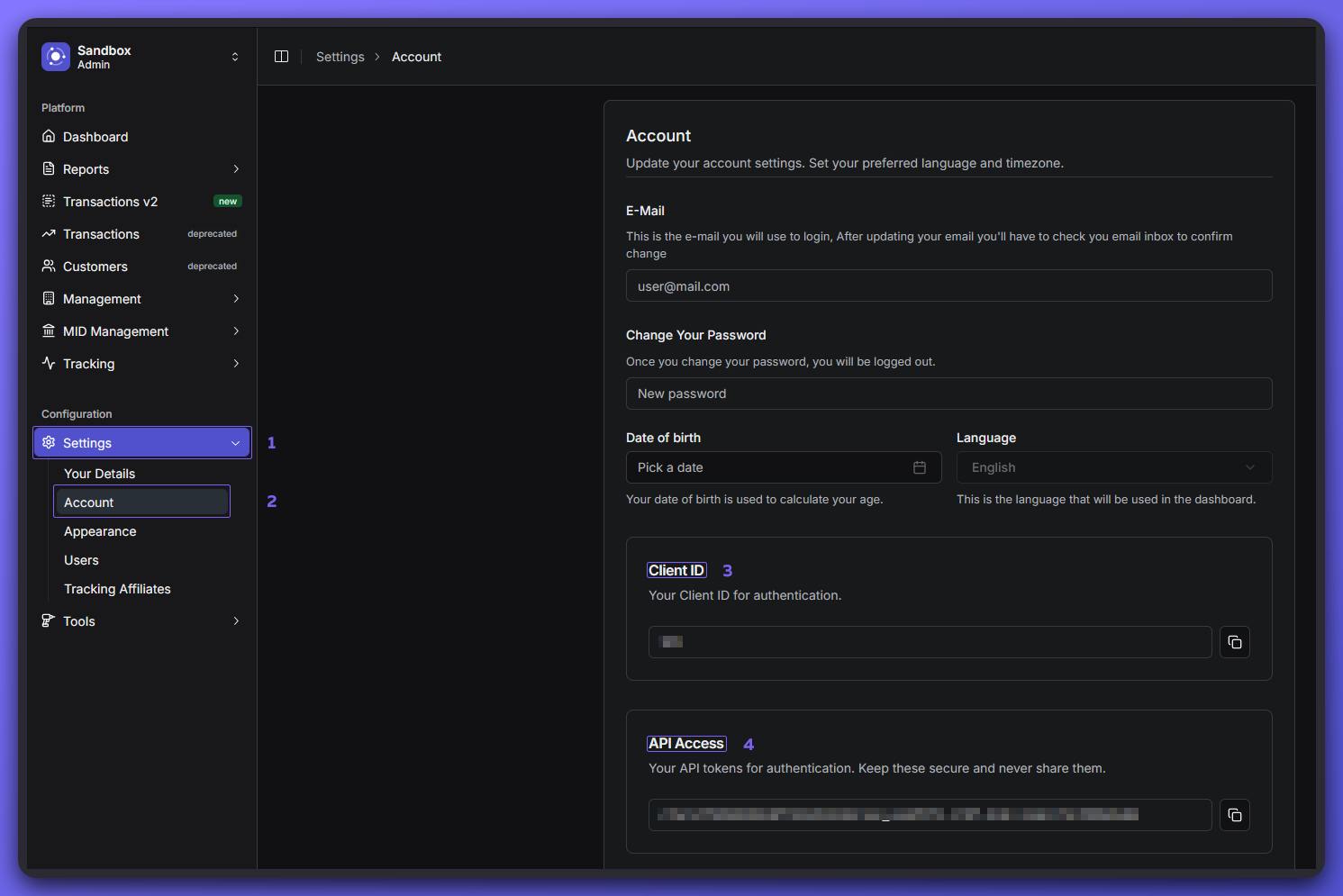
Client ID
Find this in your Account Section
API Credentials
API key available in your Account Section
Product ID
Available from your Product Management section.
Development Environment
Set up for testing
API Endpoint Overview
The card submission API processes payment transactions by accepting card details and customer information.Base URL
- Test Environment:
https://test.paysight.io
Endpoint
- Method:
POST - Path:
/api/{productId}
Step-by-Step Integration
Step 1: Authentication Setup
The API uses API key authentication passed in the Authorization header.Step 2: Prepare Request Payload
The API expects a comprehensive payload with card, customer, and transaction details.Minimum Required Request Body (JSON)
Session Management
Using session fields to match transaction webhooks
Use these two fields as your correlation keys across API calls and webhook events:- Send your own click/visit/session identifier in
partnerSessionwhen calling Card Submit. - Keep
partnerSessionat 50 characters or fewer so it is persisted for transaction-webhook correlation. - Card Submit responses return both
partnerSessionandpaysightSession. - Transaction webhooks include both fields when
partnerSessionis 50 characters or fewer, so you can join webhook events back to your original traffic/session data. - If you use the Widget SDK,
sessionIdis forwarded to Card Submit aspartnerSession.
Step 3: Make a Request to API
Base URL
- Test Environment:
https://test.paysight.io
Endpoint
- Method:
POST - Path:
/api/{productId}
Step 4: Handle the Response
The API returns a comprehensive response with transaction details:If chargeSuccess is false but subscribeSuccess is true, this indicates a successful opt-in.
Step 5: Process Response
Use the response from the API to handle as required per your solution. For example:- Redirect customer to thank you page if
chargeSuccess: true - Send the data to your internal system for additional processing and logic
Step 6: Go Live Checklist
1
Test Production Integration
Test the integration using a production ProductId with the production endpoint (prod.paysight.io)
2
Verify Setup
Verify the integration with your Paysight account manager to ensure everything is set up correctly
3
Await Approval
Wait for a GO LIVE message from your account manager before proceeding with live traffic
Next Steps
Payment API Reference
Explore the complete API documentation
Error Handling
Learn about error handling and troubleshooting
Testing Guide
Best practices for testing your integration