
Find this module in Shopify Stores > Edit Checkout > Checkout.
How it works
Create a dedicated shipping product in Shopify, sync products back to Paysight, select that product as the shared shipping product, then build customer-facing shipping options with prices, defaults, order, and availability rules. The shared Shopify product is not a regular item for customers to buy.1
Create an unlisted shipping product in Shopify
In Shopify Products, create a product for shipping. You can call it Shipping or use another internal name.Set the price to $0, then save the product as Unlisted. This product is an identifier; customers see and pay the prices configured on the shipping options in Paysight.
2
Sync products in Paysight
3
Select the System shipping product
Open Checkout > Shipping and select the product you created as the System shipping product.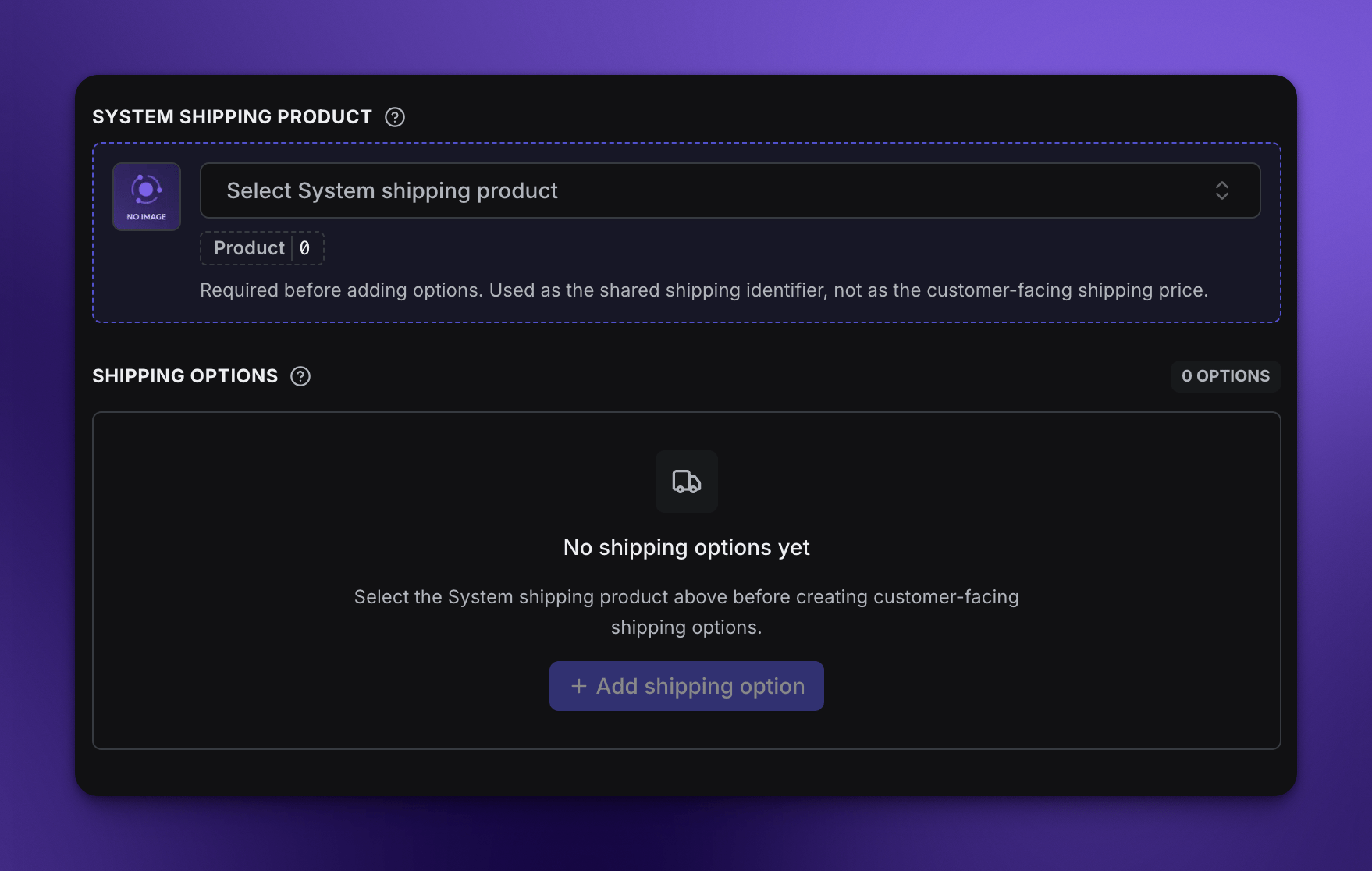
4
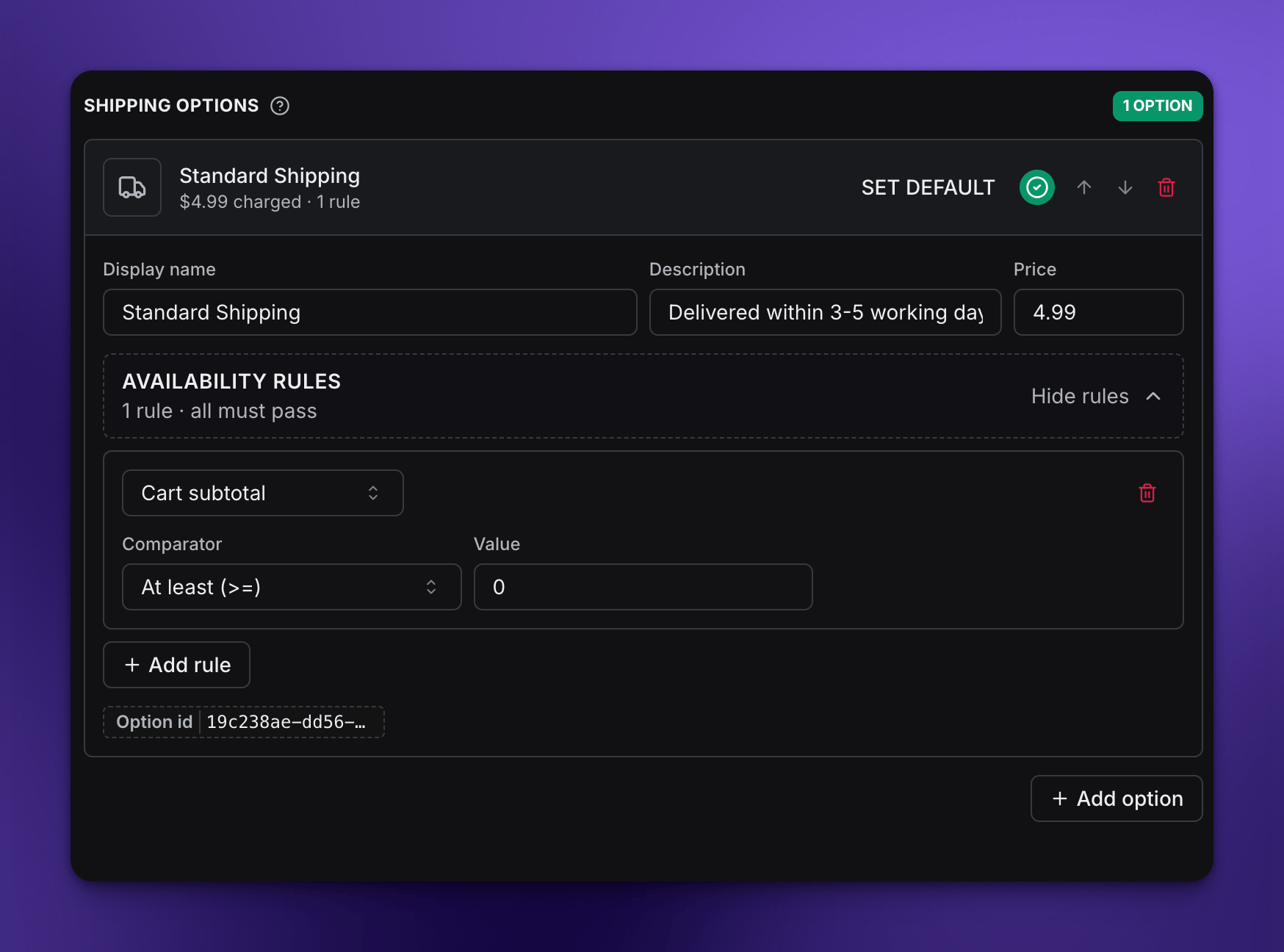
Set up shipping options
After the System shipping product is selected, add shipping options and set each customer-facing name, description, price, default state, order, and availability rules.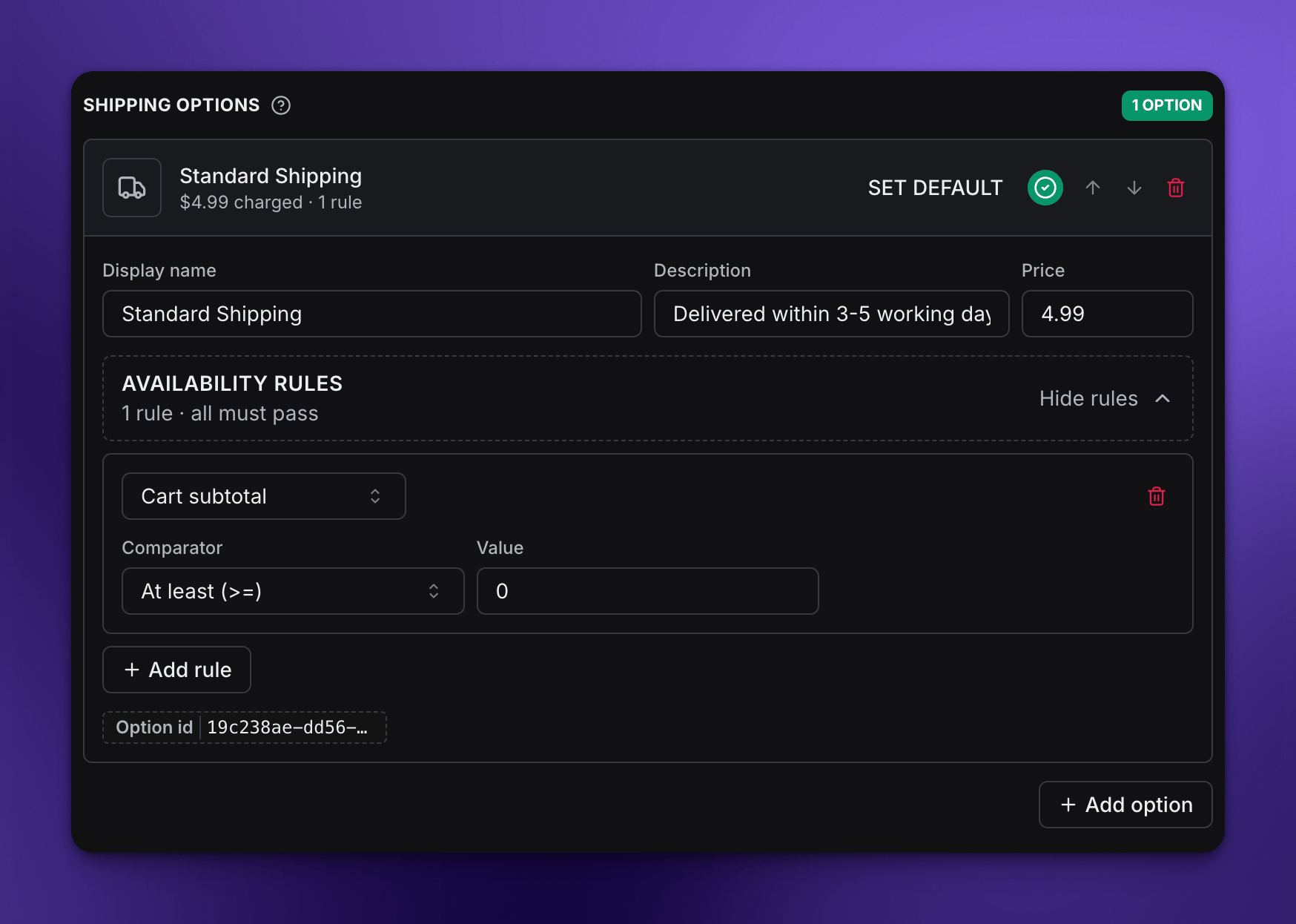
Settings reference
System shipping product
System shipping product
You will set: Shopify product pickerThe synced, zero-priced Shopify product used as the shared identifier for shipping line items. Its Shopify price is not the customer-facing shipping charge.
Shipping options
Shipping options
You will set: Option listThe customer-facing shipping choices shown in checkout, such as Standard Shipping or Express Shipping.
Option name
Option name
You will set: Text fieldThe shipping method name customers see.Example:
Standard Shipping, Express Shipping, or Free Shipping.Option description
Option description
You will set: Text fieldOptional helper text for the shipping method.Example:
Arrives in 3-5 business days.Option price
Option price
You will set: Price fieldThe shipping amount charged when the customer chooses this option.
Default option
Default option
You will set: Default buttonThe option checkout should preselect when it is available.
Option order
Option order
You will set: Move up/down controlsThe order shipping options appear in checkout.
Availability rules
Availability rules
You will set: Rules editorRules that decide when an option appears. Every rule on an option must match before customers can select it.
Cart subtotal rule
Cart subtotal rule
You will set: Rule typeShows an option only when the merchandise subtotal is above, below, or between selected values. The shared shipping product is excluded from this comparison.
Item quantity rule
Item quantity rule
You will set: Rule typeShows an option only when cart quantity matches the selected quantity rule.
Destination country rule
Destination country rule
You will set: Rule typeIncludes or excludes shipping options by destination country.
Date range rule
Date range rule
You will set: Rule typeShows an option only during a selected time window.
Examples
- Standard and express
- Free shipping threshold
- Country-specific method
Select the shared shipping product, add Standard Shipping as the default option, then add Express Shipping with a higher price.
Before saving
- Create the shipping product in Shopify first, then sync products to Paysight.
- Use a dedicated $0 System shipping product; do not treat it as merchandise or as the priced shipping option.
- Make sure at least one option is available for every supported cart and country.
- Test carts around subtotal thresholds and country rules.
Related modules
Checkout Content
Manage labels, regional behavior, reserve timer, and mobile checkout behavior.
Checkout Add-ons
Offer optional products during checkout before the order is complete.
Upsell Offers
Build post-purchase offers shown after checkout.